2.15 Button
Overview
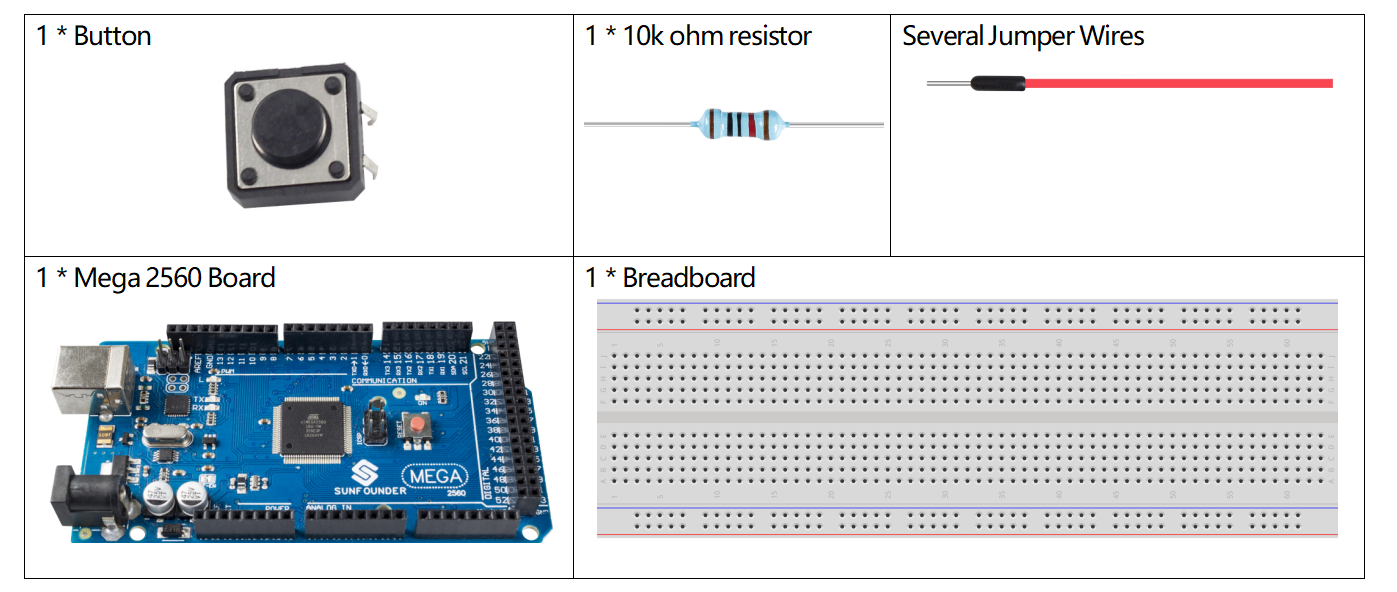
In this lesson, you will learn about Button. Button is a common component used to control electronic devices. It is usually used as a switch to connect or break circuits.
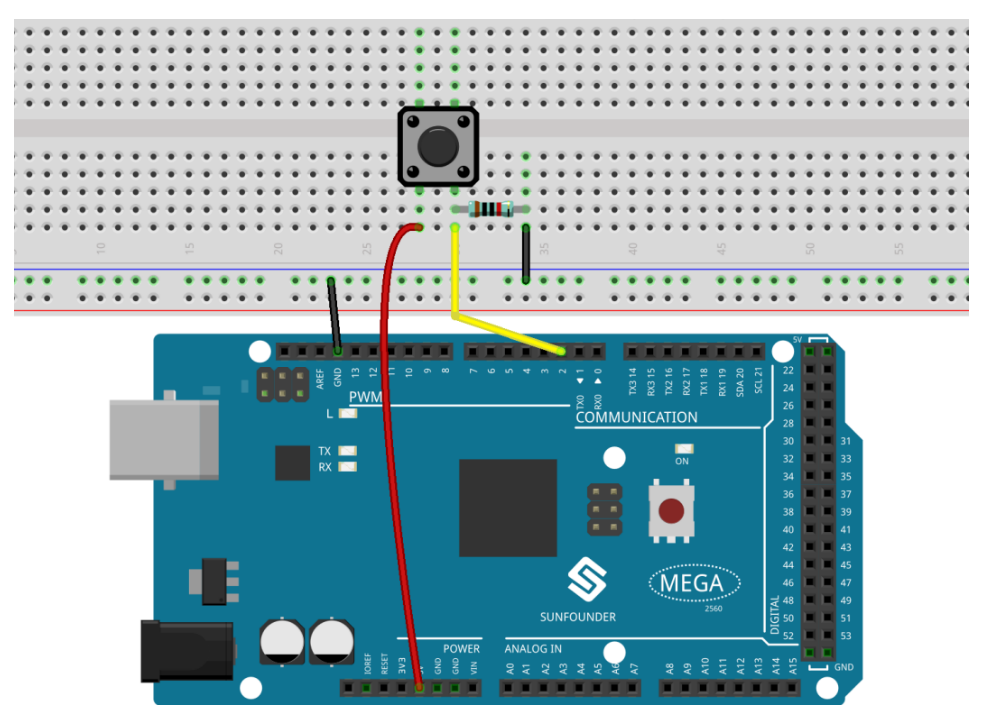
Fritzing Circuit
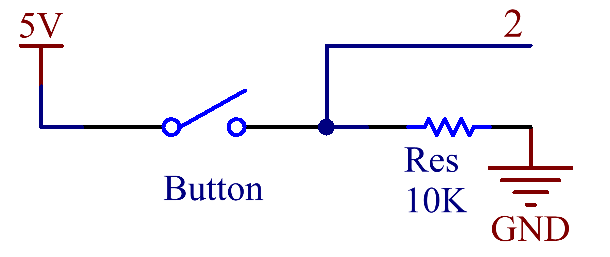
In this example, we read the signal of the button with the digital pin. When the button is not pressed, the digital pin 2 (through the drop-down resistor) is connected to ground to read the low level (0); when the button is pressed, the two pins are connected and when the pin is connected to the 5V power supply, the high level (1) is read.
Σημείωση
If you disconnect the digital I/O pin from anything, the LED may blink erratically. The input is «floating» or it doesn’t have a solid connection to voltage or ground, so it will randomly return either HIGH or LOW. That’s why there needs a pull-down resistor in the circuit.
Schematic Diagram
Code
Example 1:
Σημείωση
You can open the file
2.15_button.inounder the path ofsunfounder_vincent_kit_for_arduino\code\2.15_buttondirectly.Or copy this code into Arduino IDE 1/2.
Or click Open Code to open it in Web Editor.
Then Upload the Code to the board.
Uploaded the codes to the Mega2560 board, you can see the readings of the pins on the serial monitor. When you press down the Button, there will display 「1」on the serial monitor, and once you release it, there will display「0」. As for the detail code explanation, please refer to 1.4 Digital Read.
Example 2:
Σημείωση
You can open the file
2.15_button_2.inounder the path ofsunfounder_vincent_kit_for_arduino\code\2.15_button_2directly.Or copy this code into Arduino IDE 1/2.
Or click Open Code to open it in Web Editor.
Then Upload the Code to the board.
Uploaded the codes to the Mega2560 board, every time you press the button, the output value will switch between 0 and 1. If you want to know more about the code explanation, you can turn to 1.10 State Change Detection.
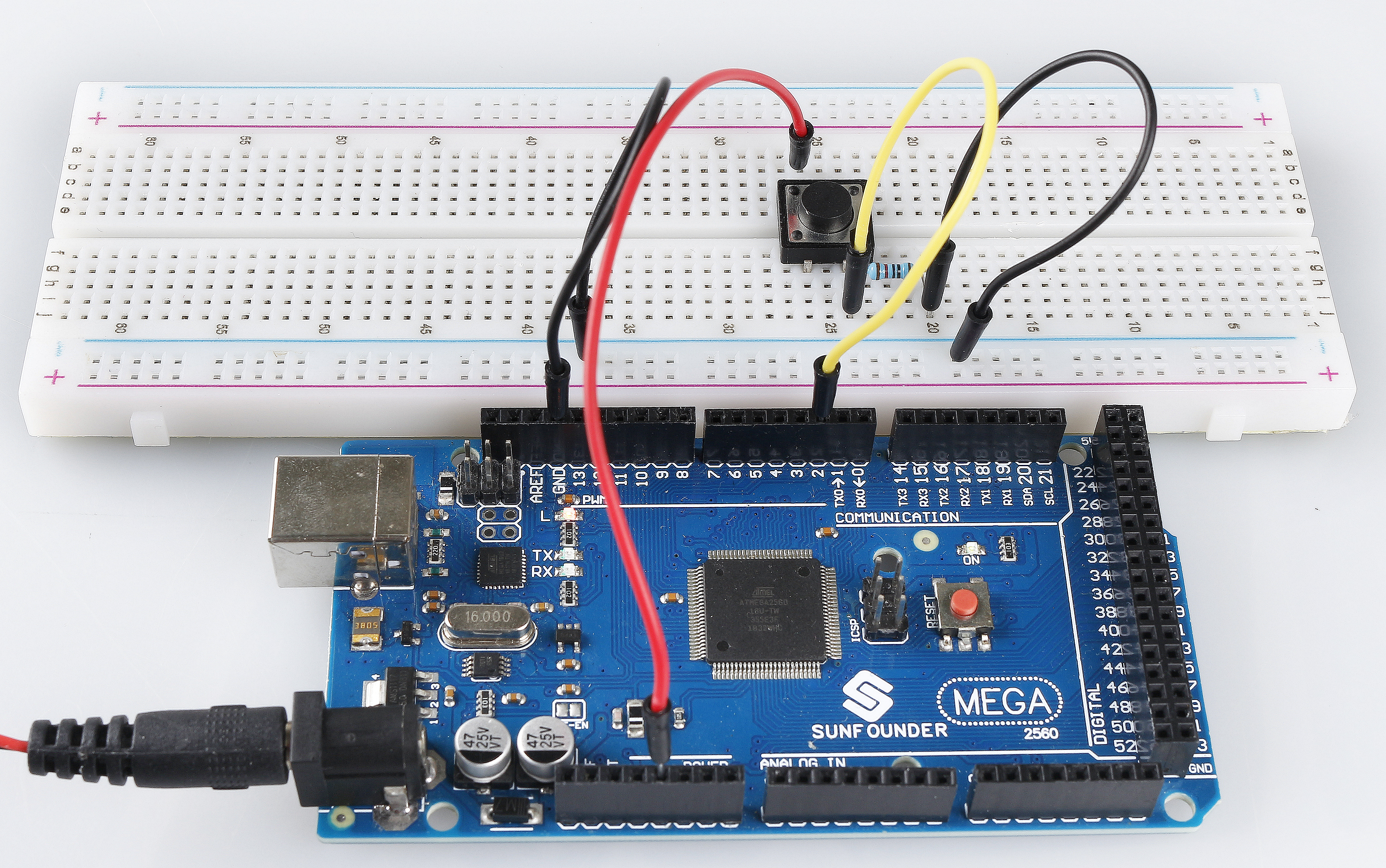
Phenomenon Picture